

Agent task execution
A Task run combines the Task, its assigned Agent, and an eligible Runtime on a connected Computer. Sharkly coordinates the run while the Task remains the shared record for People and Agents.
How an initial run starts
The normal path is:
- A person creates or updates a Task.
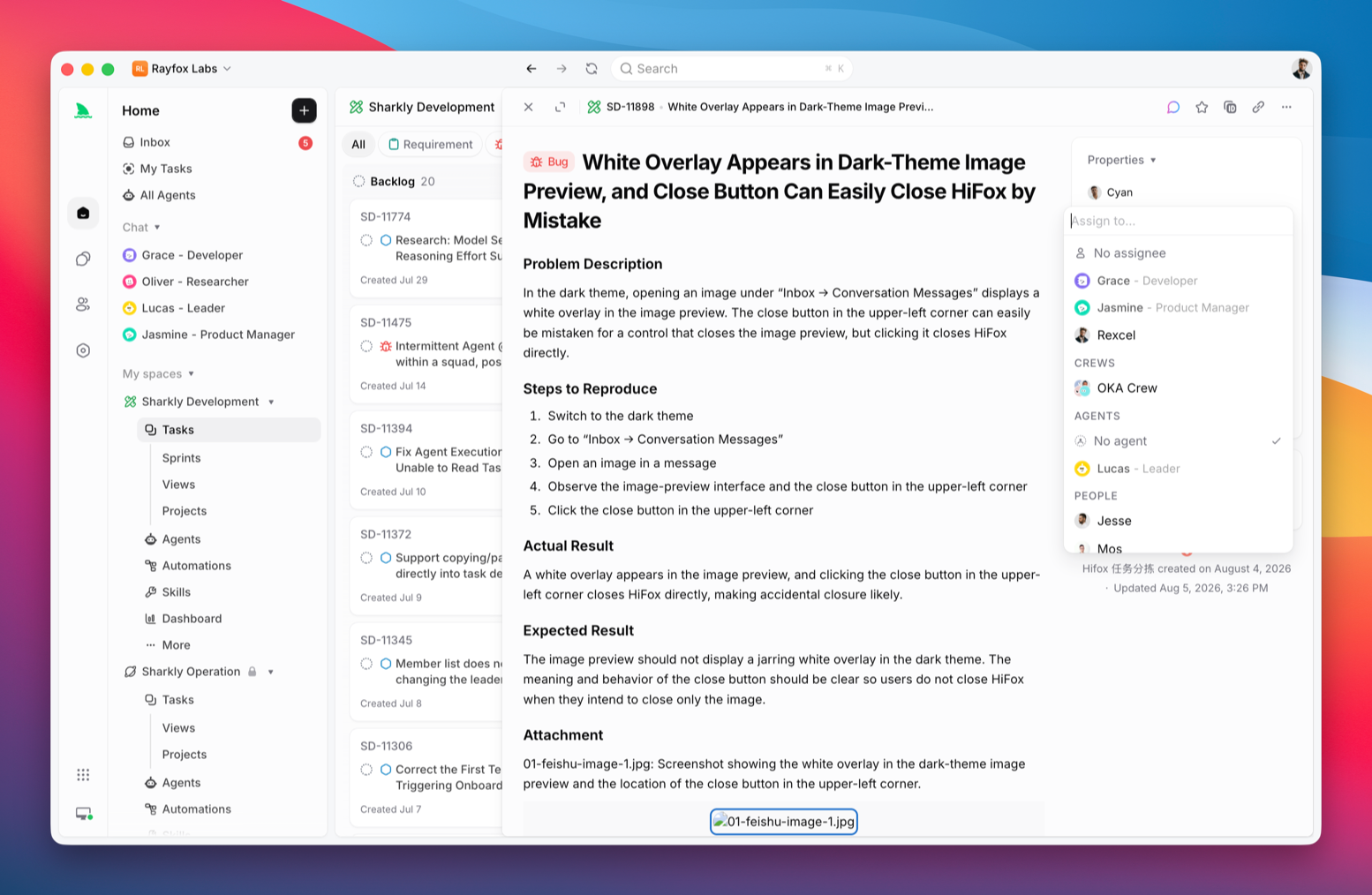
- The Task is assigned to an Agent or Crew through the Assignee control.
- Sharkly checks the Task status category and execution readiness.
- An eligible run is queued and dispatched to the selected Computer.
- The local service prepares the task directory and starts the Runtime.
- Progress, trace events, and the result return to the Task.
A Task assigned to an Agent or Crew does not start an initial run while it is in Backlog. Backlog acts as a parking area where work can be prepared before execution. Moving the Task out of Backlog starts the assigned Agent or Crew when the target is ready.
Completed, canceled, and duplicate categories do not start an initial run when the execution assignment changes. A later eligible comment can still start a conversational follow-up on a completed Task.
Context supplied to the run
A task-backed run can include:
- Task title and description;
- current status, priority, Task type, and other properties;
- Space, Project, Sprint, labels, and related identifiers;
- recent comments and the comment that triggered the run;
- the Task type Workflow and the statuses allowed by that Workflow;
- Agent instructions and assigned Skills;
- Agent or Space repositories;
- configured environment variables, secret bindings, and Runtime arguments;
- working-directory and timeout settings.
The Task type Workflow constrains which Task statuses the Agent can select. Run states such as queued or running are separate from Task workflow statuses.
Dispatch and execution
The local service on the Computer receives the run and starts the selected Runtime. Before the Runtime begins, it may need to:
- wait for Computer or Agent concurrency capacity;
- wait for a free specified local directory;
- create a temporary directory;
- fetch or check out configured repositories;
- project the allowed environment and credentials;
- construct the Runtime invocation.
If the Computer disconnects before dispatch, the run can remain queued. A Runtime or directory problem can instead surface as a failed run that needs configuration or reassignment.
Working-directory modes
Create temporary directory
Each Task gets an isolated directory. Repository-backed work can use a separate worktree for each run, which reduces interference between concurrent Tasks.
Use this mode for most repository work and whenever several Tasks may modify the same codebase in parallel.
Specified directory
The Agent uses one configured absolute directory from a local directory pool. The run reuses the code, dependencies, caches, and tools already present there instead of preparing a new copy.
Only one run uses a given specified directory at a time. If all configured directories are busy, the run enters the waiting-for-local-directory state.
Run states
A run can move through these states:
- Queued: accepted and waiting for dispatch capacity.
- Dispatched: claimed and starting on the Computer.
- Waiting for local directory: no configured specified directory is free.
- Running: the Runtime is actively working.
- Completed: the run finished successfully.
- Failed: the run ended with an execution error.
- Canceled: a person or system stop ended the run.
These states appear in the Task execution log and Agent run views. They do not automatically imply that the Task has the same workflow status.
Queued is also shown in task lists, boards, Inbox, and Task detail. When execution starts, it changes to Running; after completion, failure, or cancellation, it updates to the corresponding run result. Agent run state describes execution progress and is separate from the Task's lifecycle status.
Results on the Task
Agent text intended for the team is persisted as a Comment and linked to the run. Activity shows those comments. The Agent chat on the task is a separate record; see Chat with an Agent.
Use the execution log or transcript when you need to inspect:
- why a run was queued;
- when it started and ended;
- tool calls and Runtime events;
- the trigger source;
- failure or cancellation details.
Follow-up comments
An eligible member comment on a Task assigned to an Agent can enqueue a follow-up run even when another run is active; Sharkly coalesces pending work so rapid comments do not create duplicate pending runs for the same Agent and Task.
A comment may intentionally avoid triggering the assigned Agent when it clearly addresses someone else. The detailed mention and reply rules are covered in Comments and replies.
Human attention
An Agent can leave a Task waiting for a human reply or waiting for human review. Failed or blocked work can also surface as an attention item.
These signals feed Inbox, where the responsible person can open the Task, answer in context, review the result, or decide whether to retry or assign the work elsewhere.
Stop, retry, or reassign
A queued or running execution can be canceled. A canceled run does not resume in place, but the Task and its history remain available. Start another run by retrying where the interface offers it, adding an eligible follow-up comment, or assigning the Task to another Agent or Crew.
Before retrying a failed run, open the execution log and follow Troubleshoot a failed run. Match the title and technical details first. Do not treat a single HTTP status as a complete diagnosis.
Troubleshoot a failed run
When a run fails, open the execution log and read the title plus the technical details. The title describes what happened; the details are the original model-service response. Open the matching section below. If nothing matches, stay on this page.
The failed run still offers View help docs and Get help when the cause is unclear.
An HTTP status in the technical details is a clue, not a complete diagnosis:
- 429 can mean the account is sending requests too quickly, or that billing or quota is exhausted. OpenAI often labels both as rate limits; check
error.codein the details. Anthropic 429 can also be a monthly spend cap and may omit Retry-After. - 400 can mean malformed input, a context window overflow, a content-policy rejection, or a spend cap you set.
- 413 is usually an image or attachment that is too large in bytes, not a full conversation token window.
- 403 usually means the key still works, but the model, Organization, or region is not allowed. Do not treat it as a mistyped key first.
- Timeout / 408 / 504 means the request was slow, canceled, or delayed by a gateway. That is not the same as the Computer being offline.
- If the details mention a content policy or a missing model, stay on this page and use the original text. Do not retry the same request immediately.
What to do:
- Match the title in the execution log to a section below.
- If you need help from someone else, copy diagnostics. The packet includes Sharkly, the Runtime, this run, the technical details already shown, and the time.
- If you still cannot recover, use Get help.
Vendor references:
- Claude Code error reference
- OpenCode troubleshooting
- OpenClaw triage
- Gemini CLI troubleshooting
- goose known issues
Model service credentials were rejected
The configured model service did not accept the credentials used for this request.
- Ask the Computer owner to check or replace the model-service key or login.
- Confirm this Computer is using an account the Organization still allows, not a stale local cache.
- Retry only after the credentials change. Retrying the same rejected key usually will not recover.
If the details show 403, check model, Organization, and region permissions before changing the key.
Vendor references:
- Claude Code login and authentication
- GitHub Copilot CLI authentication troubleshooting
- OpenCode troubleshooting (auth)
- Gemini CLI troubleshooting (auth)
- OpenAI API error codes
- Anthropic API errors
Model service rate limit reached
The model service is limiting requests from this account or connection.
- Wait. If the technical details include Retry-After, honor it.
- Lower concurrency, or try a less busy Computer.
- Ask the Computer owner to review the service rate limits.
Do not add quota first. Quota exhaustion is the next section.
Vendor references:
Model service quota is exhausted
The account configured for this model service does not have enough remaining quota.
- Ask the Computer owner to review the plan, quota, or spend cap.
- Retry only after quota is restored or a different account is configured.
- Retrying the same failed request will not restore quota.
Do not wait a few seconds and retry. That is a rate limit, not exhausted quota.
Vendor references:
Model service is temporarily busy
The model service is at capacity and cannot handle this request right now. The prompt is usually not the problem.
- Wait and retry, or switch to another available model.
- If 529 or overloaded repeats quickly, wait for the service to recover.
Anthropic 529 means the service is busy. It is not this Computer's own request-rate limit.
Vendor references:
This model is not available
The selected model was not found for this provider or account. This commonly means the model name, provider namespace, account access, or gateway catalog does not match the configured value.
- Check the model name exactly as the provider documents it, including any provider-specific namespace.
- Confirm the account or gateway used by this Computer can access that model.
- Retry after correcting the configuration. Sharkly will not change the selected model automatically.
Keep the technical details when asking for help; they identify the provider response without exposing credentials.
Request is too large for this model
The request contains more input than this model can process in one context window.
- Shorten the conversation, or remove some attachments.
- Switch to a model with a larger context window, then retry.
If the details show 413, check image or attachment size first. Do not treat it as a long conversation.
Vendor references:
Image is too large for this model
The model service rejected an image because it exceeds the supported size limit. Typical limits are about 5–20 MB; Anthropic Messages also documents a ~32 MB byte cap.
- Compress the image, or use a smaller one.
- Remove extra screenshots and retry.
This is an image-byte limit, not a conversation token-window overflow.
Vendor references:
Couldn't reach the model service
The configured model service could not be reached.
- Check the Computer's network path to the model service, including proxy and certificates.
- If the Agent uses a local Runtime, also confirm the local service is online. See Computers.
- Retry after connectivity recovers.
A request timeout, a canceled run, or a 504 is not the same as the Computer being offline.
Vendor references:
Model service rejected this request
The request contains an input or option that this model service does not support.
- Check the model and request options, such as unsupported parameters or formats.
- Remove experimental flags or custom parameters and retry.
If the details mention a content policy or a missing model, return to Troubleshoot a failed run and use the original text. Changing request options alone will not fix those cases.
Vendor references: